homeassistant.koplugin
Since v2.0.0, the documentation moved back to GitHub, so that everything is in one place:
https://github.com/moritz-john/homeassistant.koplugin#homeassistantkoplugin
This KOReader plugin lets you control Home Assistant entities without leaving your current book!
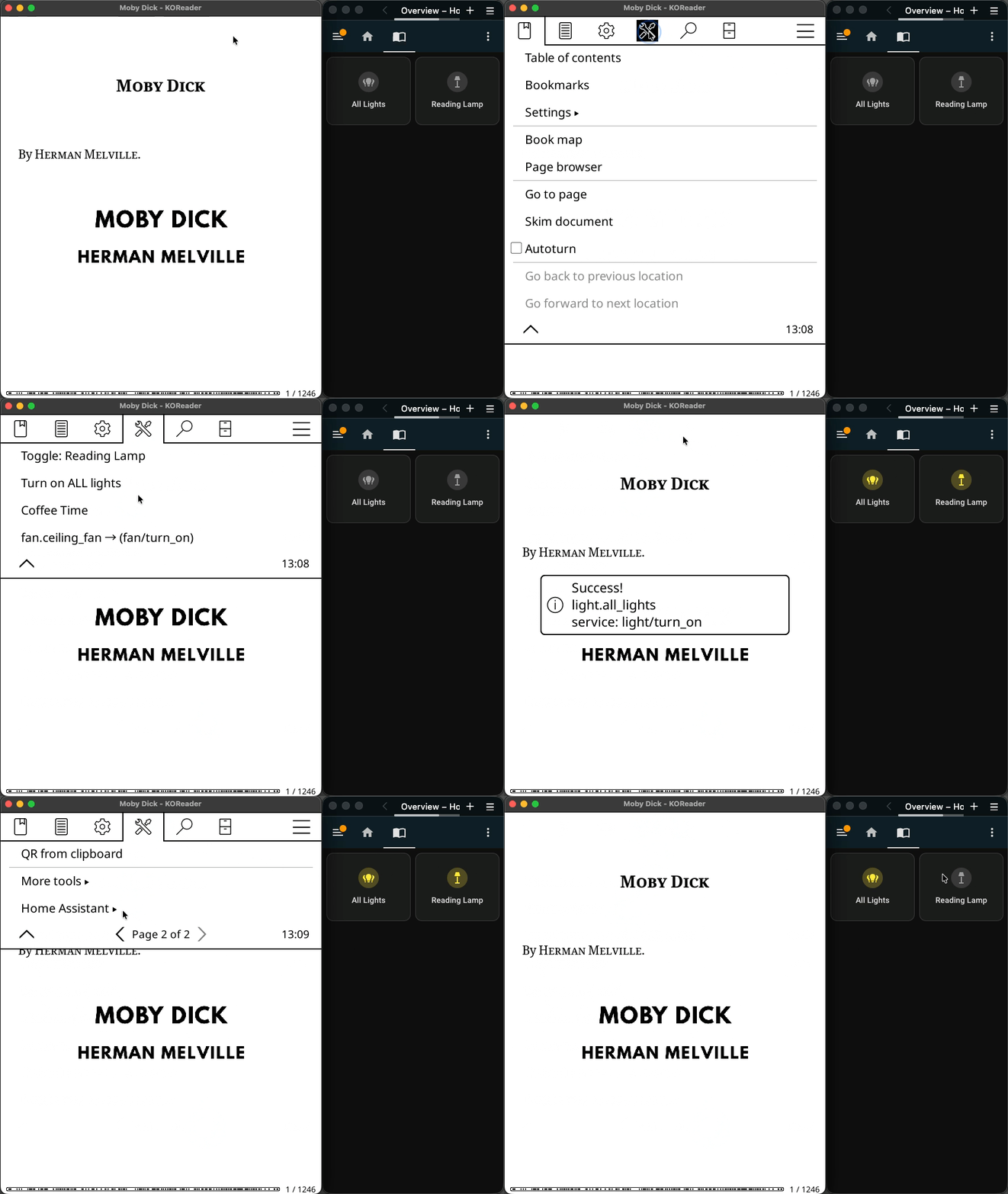
homeassistant.koplugin in action
Features
- Control any number of Home Assistant entities from KOReader
- Basic service support (e.g.
light/turn_on,switch/toggle,fan/turn_on) - Lightweight, unobtrusive interface
- Simple text-based configuration
- Success/error notifications
Installation & Configuration:
1. Download the Plugin
Download the latest release and unpack homeassistant.koplugin.zip:
https://github.com/moritz-john/homeassistant.koplugin/releases
2. Edit config.lua
2.1 Change Connection Settings
Edit the Home Assistant connection settings:
-- Home Assistant connection settings
host = "192.168.1.10",  -- Change to your Home Assistant IP Address
port = 8123,            -- Default Home Assistant Port
token =                 -- Change to your own Long-Lived Access Token
"PasteYourHomeAssistantLong-LivedAccessTokenHere",Create one under:
Home Assistant: Profile → Security (scroll down) → Long-lived access tokens → Create token
Copy the token now - you won’t be able to view it again.
2.2 Add your own Home Assistant Entities
For each entity you want to control, add an entry with:
{
id = "light.example"         → Home Assistant Entity ID
service = "light/toggle"     → Domain-specific service to call
label = "Light Example"      → Optional text label
},Use the service format light/turn_on.
Do not use automation-style action syntax light.turn_on
Example entries for Home Assistant entities in config.lua.
Be aware of proper indentations, {} and , otherwise you will get syntax errors.
{
    id = "light.reading_lamp",
    service = "light/toggle",
    label = "Toggle: Reading Lamp",
},
{
    id = "light.all_lights",
    service = "light/turn_on",
    label = "Turn on ALL lights",
},
{
    id = "switch.coffee_machine",
    service = "switch/turn_on",
    label = "Coffee Time",
},
{
    id = "fan.ceiling_fan",
    service = "fan/turn_on",
    label = "",
},
[...]
Behavior with empty label
If you leave the label field empty, the submenu entry for that entity will look like this:<id> → <(service)>
Example Actions & Services
Here are common Home Assistant services you can use in config.lua:
| Entity Type | Action Name | Corresponding Service | Example Entity ID |
|---|---|---|---|
| Light | light.turn_on light.turn_off light.toggle | light/turn_onlight/turn_offlight/toggle | light.reading_lamp |
| Switch | switch.turn_on switch.turn_off switch.toggle | switch/turn_onswitch/turn_offswitch/toggle | switch.outlet_couch |
| Fan | fan.turn_on fan.turn_off fan.toggle | fan/turn_onfan/turn_offfan/toggle | fan.ceiling_fan |
| Scene | scene.turn_on | scene/turn_on | scene.reading_mood |
| Automation | automation.trigger | automation/trigger | automation.bed_routine |
| Input Button | input_button.press | input_button/press | input_button.wake_computer |
Only basic services are supported.
Additional service data (e.g. rgb_color) is not.
3. Copy files
After editing config.lua copy the entire homeassistant.koplugin folder into koreader/plugins/.
4. Restart KOReader
The plugin appears under Tools → Page 2 → Home Assistant.
or use gestures.
KOReader Gestures
You can trigger your Home Assistant entities directly through KOReader gestures.
Each gesture can be assigned to any entity you have configured in config.lua.
For any chosen gesture, you will find your entities in
General▸ → Pages 1–X [find your Home Assistant entity]
The actions will be named after your entity label.
A complete gesture example:
Settings → Taps and gestures → Gesture manager▸
Long-press on corner▸ → Bottom Left → General▸ → Page 1–X: Toggle: Reading Lamp
QuickMenu
The simplest way to access your Home Assistant entities is through a QuickMenu.
Add as many entities as you want to a gesture (e.g. Long-press on corner▸ → Bottom Left)
and then select Show as QuickMenu in Long-press on corner▸ → Bottom Left → Page 2.
The result looks like this:
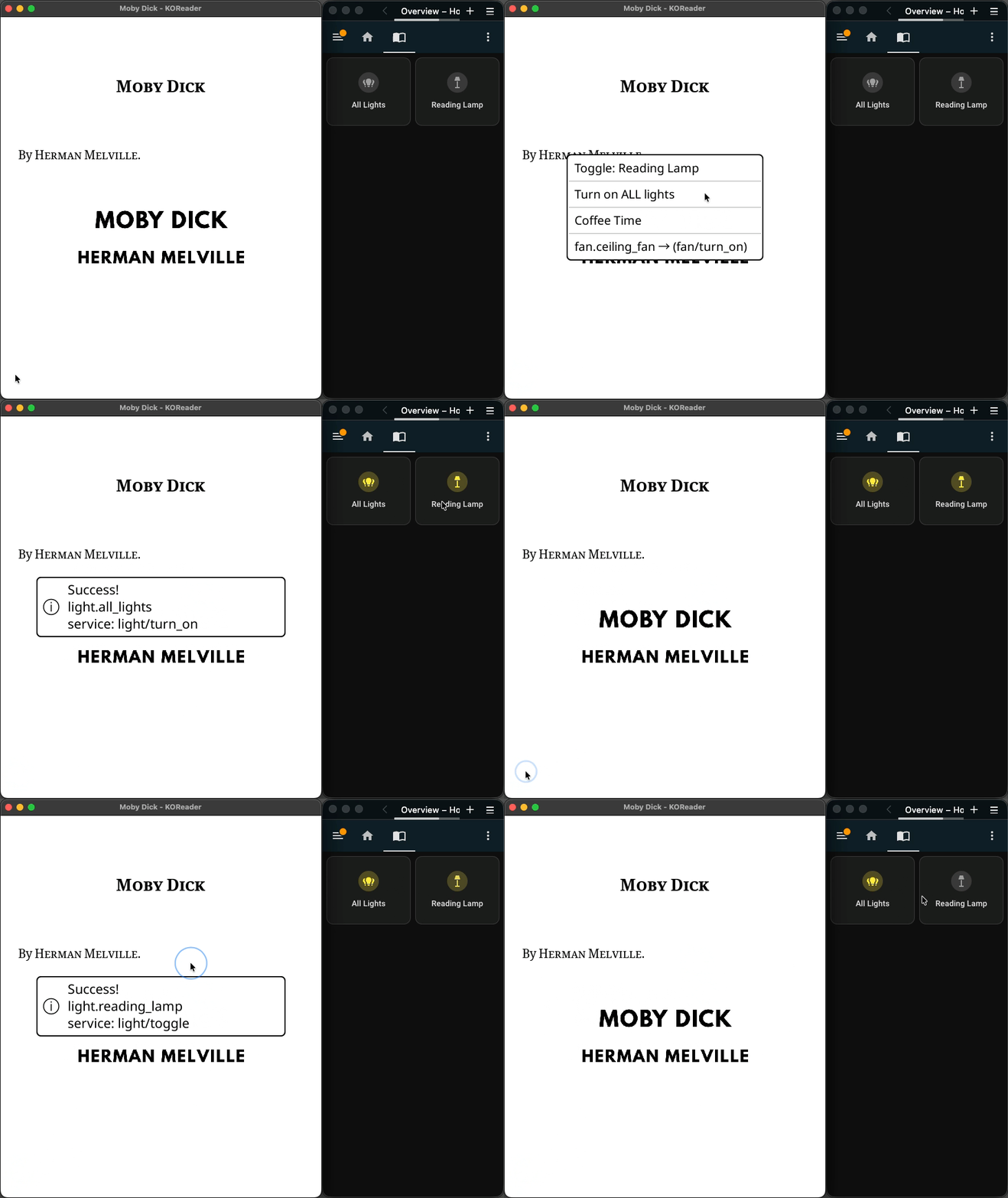
homeassistant.koplugin used in a QuickMenu
Requirements
- KOReader (tested with: 2025.10 “Ghost” on a Kindle Basic 2024)
- Home Assistant & a Long-Lived Access Token
- HTTP access (HTTPS currently not supported)
Screenshots
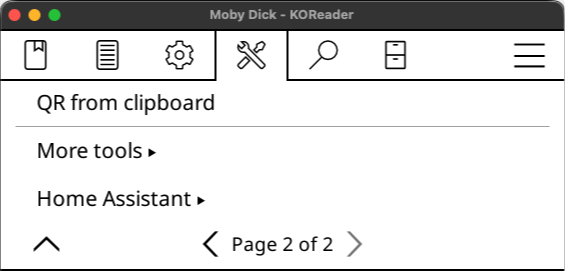
Home Assistant menu entry under Tools
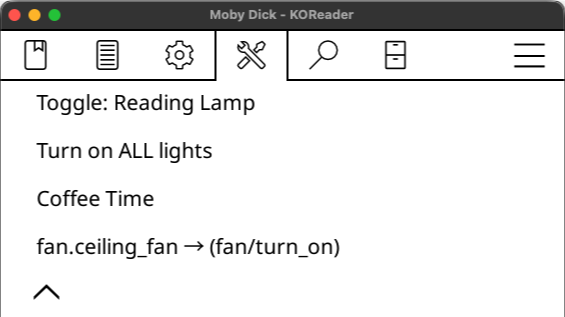
Example Home Assistant entities in the submenu
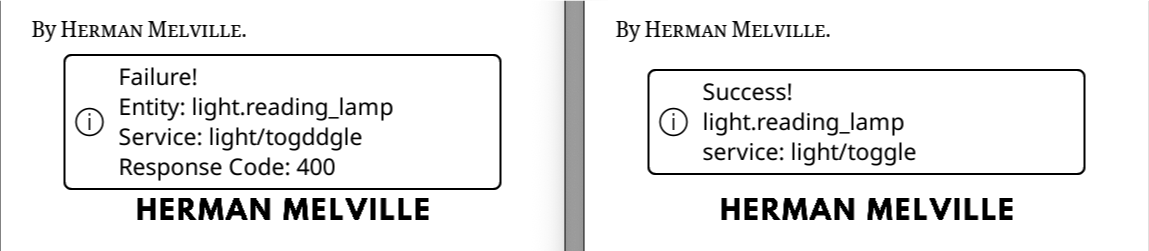
Failure & Success notification
Links
homeassistant.koplugin Repository
KOReader Website
Home Assistant: REST API
Home Assistant: Services
Home Assistant: Performing actions